How to view issues in a queue
Each issue in Yandex Tracker belongs to a queue. Queues usually include issues belonging to similar categories. These can be issues of a project, department, or team.
To view all issues in the queue, open its page:
-
On the left-hand panel, select Queues.
-
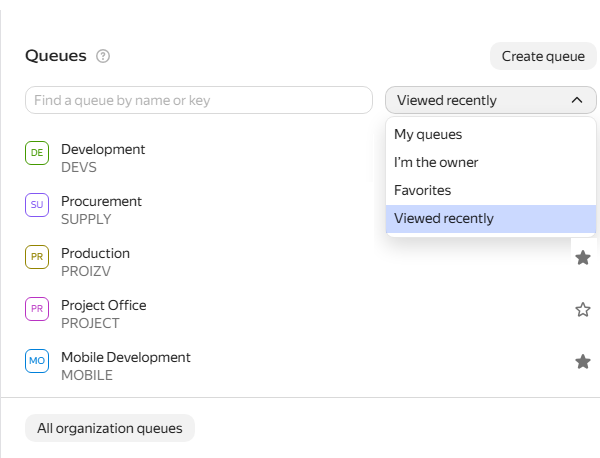
Select a filter to show the list of queues:
- My queues
- Owned by me
- Favorites
- Recently viewed
-
If you cannot see all relevant queues, expand the list:
-
At the bottom of the left-hand panel, follow the link to the full list for the selected filter.
-
To open all the queues available to you in Yandex Tracker, click Show all or follow the direct link.
-
-
Click the name of the relevant queue.
By default, the queue page shows a list of issues. You can also view issues as a calendar, Gantt chart, or issue board.
Selecting an issue view
Under the queue heading, you can select a tab with the issue view that best suits your needs:
- Issue list.
- To learn how to configure the table, see How to configure the issue search results list.
- To learn how to display the issue hierarchy, see Displaying the issue hierarchy.
- Calendar. How to work with issues in the calendar view
- Gantt chart. How to use the Gantt chart
- Issue board or dashboard, if you added them to the queue. How to set up tabs in a queue
Adding a queue to Favorites
If you need quick access to a particular queue, add it to your Favorites:
-
Open the queue page.
-
At the top of the page, under the queue name, click Add to Favorites.
To open the list of your favorite queues:
-
On the left-hand panel, select Queues.
-
In the list on the right, select the Favorites filter.